Path Settings
AdminSphere ships a path, a status progress bar, for eight of its objects, already active. Salesforce shows paths only when Path is turned on for the org, so this step turns it on.
| Path | Object |
|---|---|
| Entity Path | Legal Entity |
| Form Request Path | Form Request |
| KYC Review Path | KYC Review |
| Offboarding Path | Offboarding |
| Onboarding Path | Onboarding |
| Regulatory Filing Path | Regulatory Filing |
| Service Engagement Path | Service Engagement |
| Service Task Path | Service Task |
Before you start
Section titled “Before you start”- You need the System Administrator profile.
-
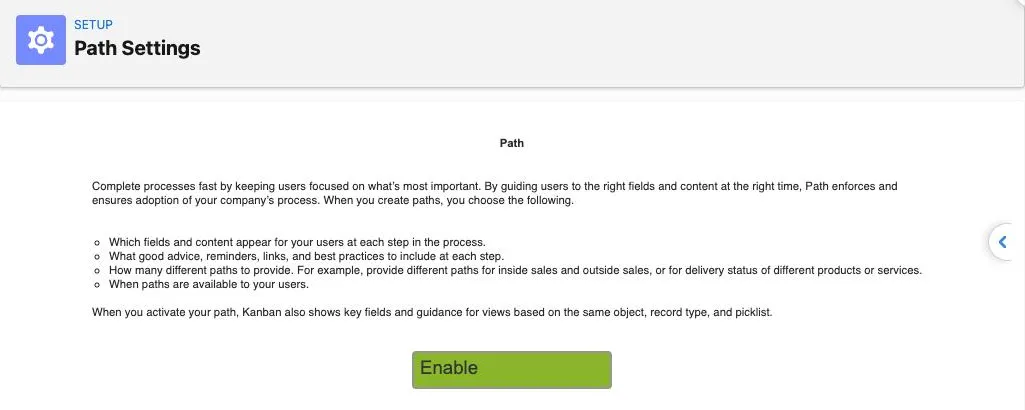
Go to Setup → User Interface → Path Settings. If Path isn’t on yet, the page shows a green Enable button.
-
Click Enable.
You don’t need to create or activate any paths: the AdminSphere paths are already active.
How to check it worked
Section titled “How to check it worked”- The Path Settings page now shows a New Path button instead of Enable, and a table of paths. The eight AdminSphere paths are listed with Active checked.
- Open any legal entity. A progress bar for its Status appears below the record name, with a Mark Status as Complete button.
If something goes wrong
Section titled “If something goes wrong”- A record shows no progress bar. Go back to Path Settings. If it still shows Enable, Path isn’t on yet: click it. If it shows the table, check that the path for that object has Active checked.