Quote Approval Process
AdminSphere ships the pieces for quote approvals: an Approver field on the quote and three field updates that move the quote’s Status to In Review, Approved or Draft. Salesforce doesn’t let a package include the approval process itself, so you create it once. You choose your own thresholds; the steps below set up everything else.
Before you start
Section titled “Before you start”- You need the System Administrator profile.
- Decide which quotes need approval, if not all quotes that have an approver. You’ll enter that as extra entry criteria in step 5.
Create the process
Section titled “Create the process”-
Go to Setup → Process Automation → Approval Processes.
-
Scroll past the Try Flow Approval Processes! panel. In Manage Approval Processes For, choose Quote.
-
Click Create New Approval Process → Use Standard Setup Wizard.
-
Step 1. Enter Name and Description: enter any Process Name, for example Quote Approval. Unique Name fills in by itself. Click Next.
-
Step 2. Specify Entry Criteria: in the first row choose Quote: Approver, operator not equal to, and leave Value empty. This sends only quotes that have an approver.
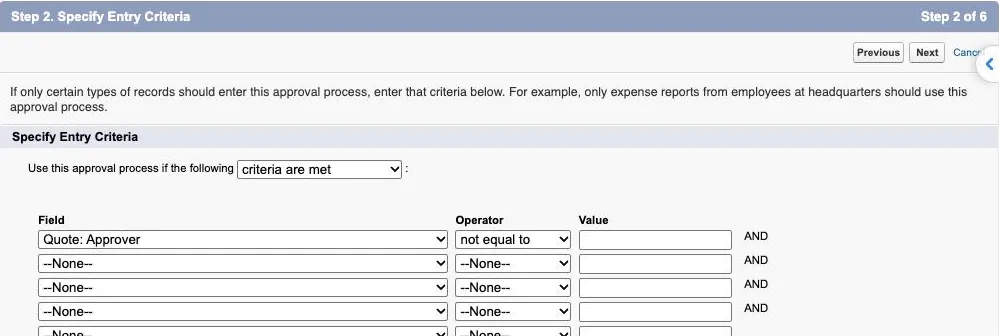
To add your own thresholds, use the next rows: choose a field, an operator and a value. Click Next.
-
Step 3: leave Next Automated Approver Determined By as –None–. Click Next.
-
Steps 4 to 6 (email template, fields on the approval page, initial submitters): Salesforce fills in defaults. Change them if your firm needs to, then click Save.
Add the approval step
Section titled “Add the approval step”-
On What Would You Like To Do Now?, keep Yes, I’d like to create an approval step now and click Go!
-
Enter any step Name, for example Approval, and click Next. Keep All records should enter this step and click Next.
-
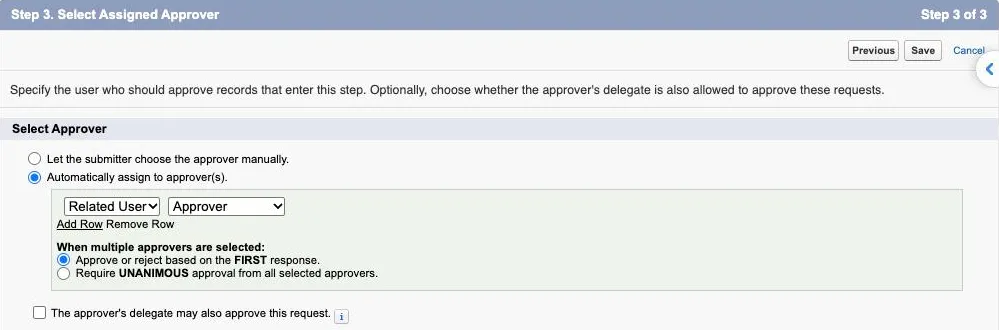
Choose Automatically assign to approver(s). In the row that appears, change User to Related User, then choose Approver. Click Save.
-
On the next page, choose No, I’ll do this later and click Go! to open the process.
Add the status updates
Section titled “Add the status updates”-
On the process page, add one field update to each of these sections. Click Add Existing, change Search to Field Update, select the update, click Add, then Save:
Section Field update Initial Submission Actions Quote Set In Review Final Approval Actions Quote Set Approved Final Rejection Actions Quote Set Draft -
Click Activate, and confirm. After activation you can’t add or remove approval steps.
How to check it worked
Section titled “How to check it worked”Set the Approver field on a quote before submitting it. A quote without an approver can’t be submitted. Then open the quote, click the actions menu (▼) → Submit for Approval → Submit. The quote’s Status changes to In Review, and the approver gets the request.
If something goes wrong
Section titled “If something goes wrong”- The quote can’t be submitted. Check that its Approver field is set, and that the process shows Active on its page.