Lead Layout
AdminSphere adds a page layout for leads, AdminSphere Lead Layout. It shows the fields your sales team uses to qualify a prospect, such as the client profile and the services and jurisdictions they’re interested in. Salesforce keeps showing its standard Lead Layout until you assign this one.
Before you start
Section titled “Before you start”- You need the System Administrator profile.
- Know which profiles to change. Assign it to every profile whose users hold an AdminSphere permission set (typically your Standard User profile and any custom profiles your team uses). Profiles of users who never use AdminSphere can keep their current layout.
-
Go to Setup → Object Manager → Lead → Page Layouts.
-
Click Page Layout Assignment, then Edit Assignment.
-
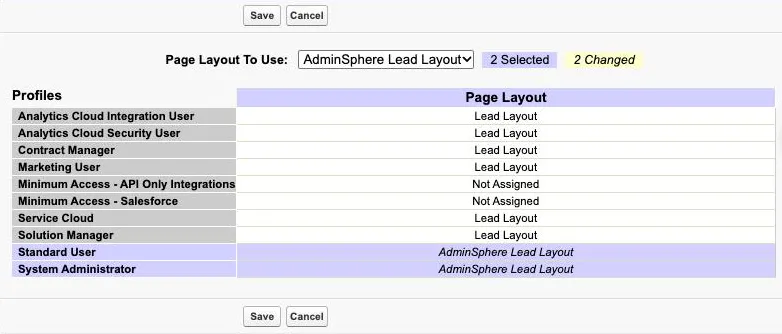
In the Page Layout column, select the cells for those profiles. Click one cell, then Shift-click another to select the cells between them.
-
In Page Layout To Use, choose AdminSphere Lead Layout. The selected rows change to the new layout, in italics, and the counter shows how many changed.
-
Click Save. The saved rows show AdminSphere Lead Layout without italics.
How to check it worked
Section titled “How to check it worked”Open any lead as a user with one of those profiles and click Details. You see the sections Client Profile, Services & Jurisdictions and Additional Details.
If something goes wrong
Section titled “If something goes wrong”- A lead still shows the standard layout. Check which profile that user has, and that the profile’s row shows AdminSphere Lead Layout under Page Layout Assignment.